Why a Dedicated Network Closet Changes Everything
Most Seattle homes handle networking the same way: modem on the kitchen counter, router in the living room, cables running under rugs. It works until it doesn't — intermittent drops, no clue which cable goes where, and no room to grow. A dedicated network closet centralizes everything into one clean, accessible location that you can actually troubleshoot.
Choosing the Right Rack
Wall-mount racks come in a standard 19-inch width (the universal networking industry standard) and are measured in rack units, where 1U = 1.75 inches of vertical space.
For most homes, an 8U or 12U wall-mount rack is the right call:
- 8U fits a patch panel, switch, UPS, and a shelf — enough for a typical home
- 12U adds room for a NAS, additional switch, or a second patch panel as you expand
A 12U cabinet is roughly 21 inches tall and supports around 130 lbs of static load — plenty for home gear. Mount it directly into wall studs, not just drywall. If your utility closet doesn't line up with studs, add a horizontal 2×6 backer board first.
Patch Panel and Switch
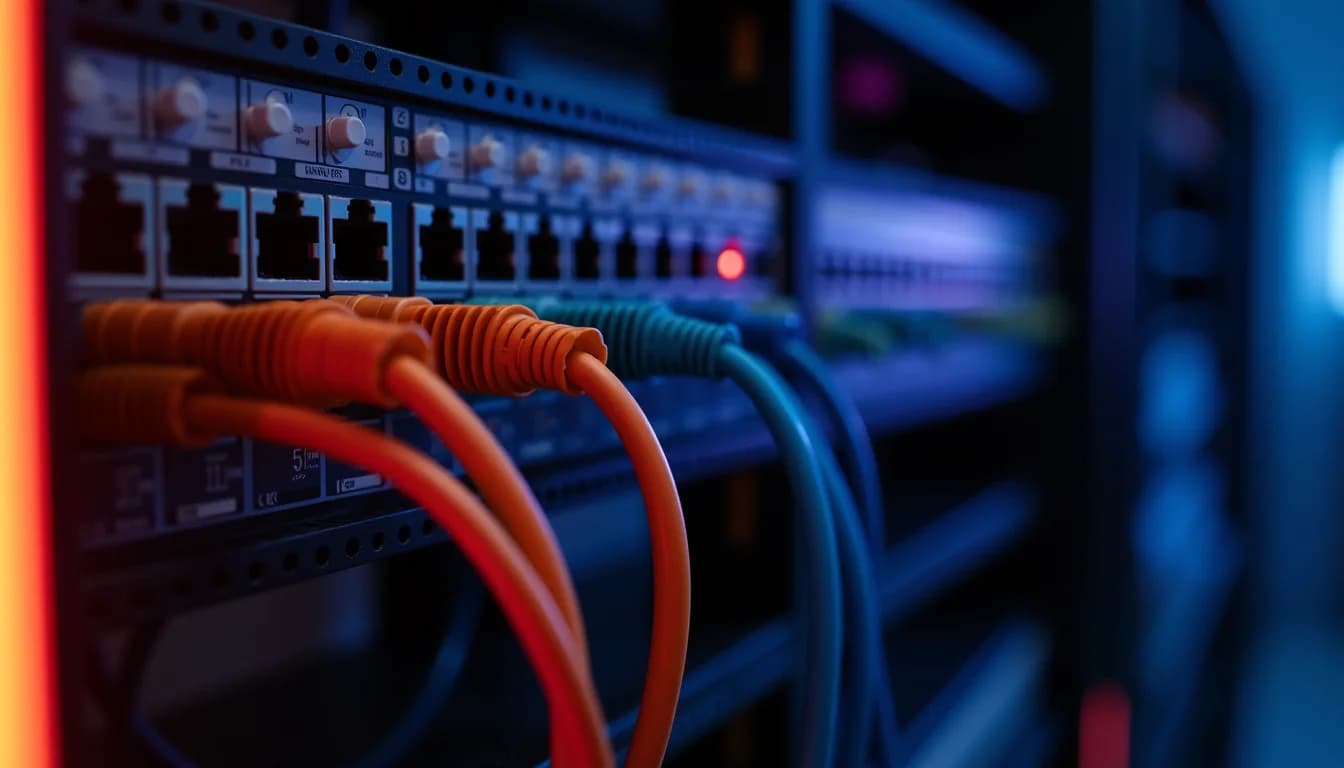
The patch panel is where your home's ethernet runs terminate. Every Cat6 drop — bedroom, office, living room — gets punched down here. Short patch cables then connect each port to your switch, keeping the long in-wall runs out of the switching fabric entirely.
For most homes:
- 24-port Cat6 keystone patch panel (1U height) is the right starting point. Twenty-four ports covers a 3–5 bedroom home with room left for cameras and access points.
- If you wired with Cat6A (rated for 10 Gbps at up to 100 meters), match it with a Cat6A patch panel — don't bottleneck at the panel.
- Keystone-style panels are easier to work with than traditional punch-down panels and simpler to reconfigure later. Worth the minor price premium.
Pair the patch panel with a managed Gigabit switch. A 24-port managed switch typically draws 50–60W — important when sizing your UPS. Managed switches let you set up VLANs (keeping IoT devices off your main network), monitor traffic, and enable QoS. It's the kind of thing you won't miss until you have it.
Sizing Your UPS Correctly
A UPS keeps your network running during outages and protects gear from voltage spikes. In Seattle, where winter storms regularly drop power for minutes at a time, this is not optional.
Calculate your load first:
- 24-port switch: ~50W
- Router/gateway: ~15W
- Small NAS (2-bay): ~40W
- Example total: ~105W
Convert to VA: 105W ÷ 0.9 power factor = ~117 VA. Add a 25% safety buffer — you need about 150 VA at minimum. In practice, buy significantly more headroom than the math suggests:
| UPS Size | Suited For | Approximate Runtime | |---|---|---| | 500 VA | Router + switch only | 10–15 min | | 750 VA | Router + switch + NAS | 15–25 min | | 1500 VA | Full homelab with cameras | 30–45 min |
For most Seattle homeowners, a 750 VA line-interactive UPS ($80–150) is the right call. "Line-interactive" means it includes automatic voltage regulation (AVR), handling brownouts without draining the battery — useful in neighborhoods with aging utility infrastructure.
One important detail: plug the UPS into a dedicated 20A circuit, separate from laundry or kitchen appliances. A dryer cycling on causes momentary voltage dips that will trigger the UPS every single time if they share a circuit.
Cable Management and Labeling
Good cable management isn't cosmetic — it's how you find the problem at 11pm when something stops working.
Bend radius: Cat6 has a minimum bend radius of 1 inch. Tighter than that and you risk deforming the twisted pairs, which degrades performance even when the cable tests as connected. Use horizontal cable managers and patch panel guides to maintain clean curves.
Velcro over zip ties: Zip ties are easy to over-tighten, which crimps the cable jacket and kills performance on long runs. Velcro cable ties are reusable, gentle, and easy to undo when you need to add a run. A pack of 50 costs about $5.
Label both ends before you finalize: A simple scheme like BR1-P01 (Bedroom 1, Port 1) takes 10 minutes upfront and saves hours of tracing later. A Brother P-Touch label maker runs about $20 and is the most useful $20 you'll spend on a network install.
Practical Notes for Seattle Homes
Most Seattle craftsman bungalows and 1950s–70s ranch homes have a utility closet, laundry room, or hallway niche that works well as a network closet. A few things to know before you commit to a location:
- Attic access: Seattle ranches almost always have attic space, which makes routing cables to bedrooms dramatically easier than fishing through finished walls. Pick a closet with attic access above it if you can.
- Older electrical panels: If your home has a 1960s–70s panel, have an electrician confirm it can support a dedicated 20A circuit before choosing your closet location. Adding a circuit runs $200–400 in the Seattle area.
- Humidity: Basement and laundry-room closets can get humid in a PNW winter. Keep the closet between 68–72°F — networking gear is rated to around 95°F before it starts throttling, but cooler is better for lifespan. For racks drawing under 700W (which is every home setup), passive air circulation handles it. A louvered closet door or small gap at the top is enough.
What a Finished Rack Actually Costs
| Item | Typical Cost | |---|---| | 12U wall-mount rack | $150–300 | | 24-port Cat6 patch panel | $50–100 | | 24-port managed switch | $150–300 | | 750 VA UPS | $80–150 | | Electrician (dedicated outlet) | $200–400 | | Total | $630–1,250 |
That's a one-time investment for a network that's documented, expandable, and ready for whatever you add next — whether that's a NAS, a UniFi controller, or a run to the garage.
Have questions about your project? Contact us for a free estimate.