Why one router can't cover a whole house
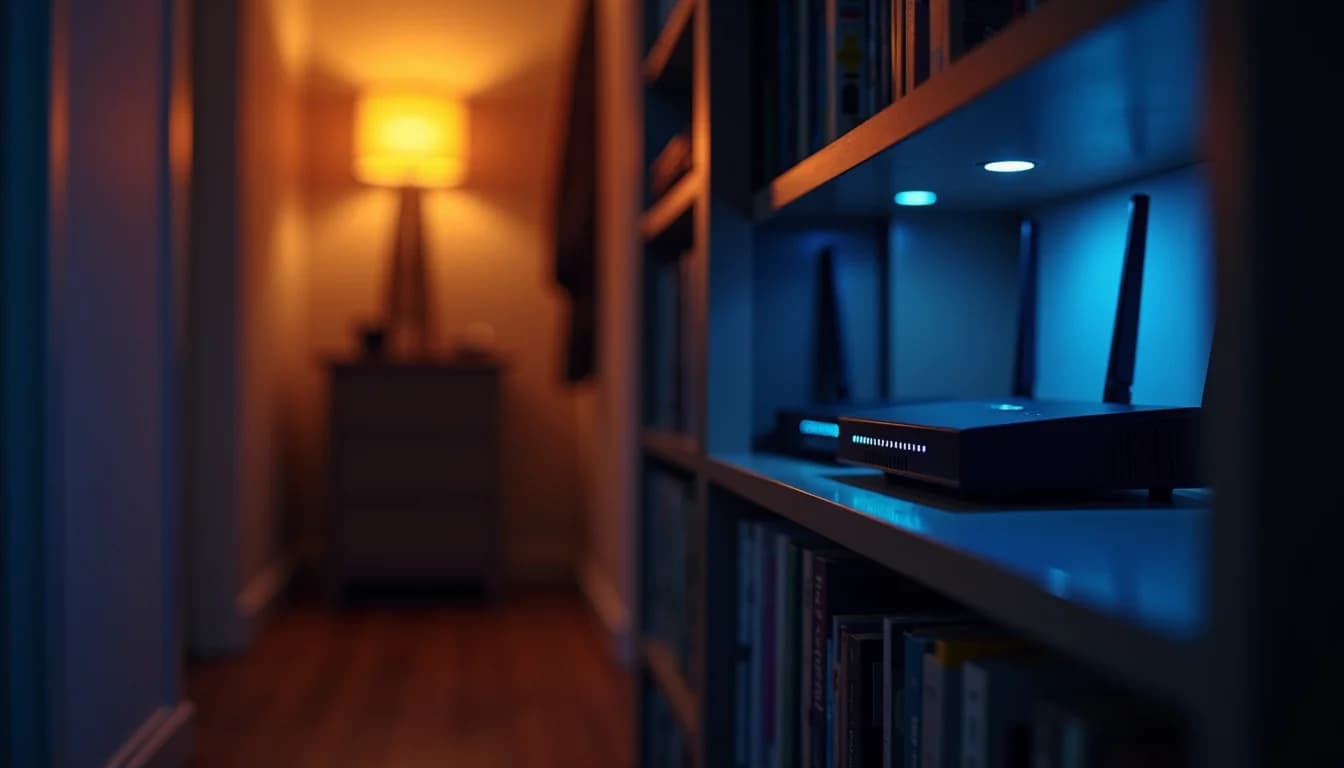
A single router in the living room rarely covers a whole house evenly, and the reason isn't the router being "bad." It's physics. 2.4 GHz signals have a wavelength of roughly 12 cm and pass through drywall reasonably well. 5 GHz signals have a wavelength of about 6 cm and lose 15–20 dB going through a single interior wall. 6 GHz (used by Wi-Fi 6E and Wi-Fi 7) attenuates even faster. So the band that gives you fast speeds is the band that struggles to reach the back bedroom.
That's the core trade-off. Everything else — interference, band steering, mesh nodes — is just working around it.
The interference problem on 2.4 GHz
The 2.4 GHz band has 11 usable channels in the US, but only channels 1, 6, and 11 are non-overlapping at the standard 20 MHz width. That means in a Seattle apartment building or a dense neighborhood like Ballard or Capitol Hill, you might have 15–30 neighbor SSIDs all fighting for three real channels. Add a microwave (which leaks at 2.45 GHz), a cordless phone, a baby monitor, and a Bluetooth speaker — and your 2.4 GHz radio spends more time waiting than transmitting.
Symptoms: video calls freeze for 2–5 seconds, then recover. Speed tests look fine but real use feels slow.
The range problem on 5 GHz
5 GHz has more spectrum — up to 25 usable channels in the US across UNII-1, UNII-2, UNII-2 Extended, and UNII-3 — so congestion is rarely the issue. The problem is distance. Once you're two walls away from the router, your phone might decide to stay connected at -75 dBm instead of roaming back to the stronger 2.4 GHz signal, and you get the worst of both worlds: 5 GHz speeds, except they're 30 Mbps because the signal is barely there.
This is called sticky client behavior, and it's why people with "fast Wi-Fi" still have dead zones.
Building materials in older Seattle homes
Pre-1950s craftsman and Tudor homes in neighborhoods like Wallingford, Phinney Ridge, and West Seattle often have lath-and-plaster walls with metal mesh inside. That mesh acts like a Faraday cage for 5 GHz. The same is true for any wall containing tile, brick veneer, or — in rare cases — old-school knob-and-tube wiring runs. A signal that goes through a normal drywall house just fine can completely die going through one plaster wall.
If you've ever wondered why your old neighbor's identical-floorplan home gets perfect Wi-Fi and yours doesn't, this is usually why.
What actually fixes dead zones
The real fixes, in order of effectiveness:
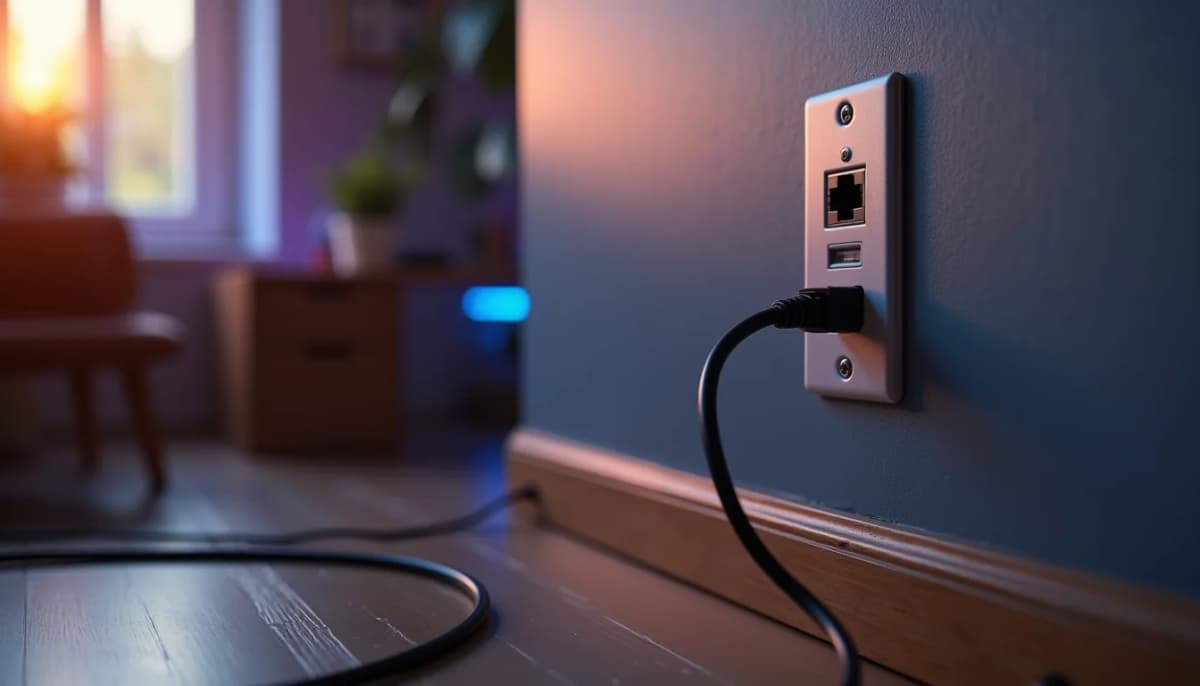
1. A second access point with a wired backhaul. Run Cat6 to a ceiling-mounted access point in the part of the house with weak signal. This works because the AP is broadcasting fresh, full-strength signal directly into the dead zone — not relaying a degraded signal from the main router. A two-AP wired setup beats a six-node mesh almost every time.
2. Switch to mesh with a wired backhaul. If you already own mesh nodes (Eero, Orbi, TP-Link Deco), connect them to each other via ethernet instead of letting them backhaul wirelessly. Wireless mesh loses 40–60% of its capacity per hop. Wired backhaul gets close to full speed at every node.
3. Fix channel selection manually. Log into your router and pin 2.4 GHz to channel 1, 6, or 11 — whichever your neighbors aren't using. Use a tool like WiFi Explorer (Mac) or WiFiman (mobile) to scan. Stop letting the router "auto-select" — it often picks badly and never re-evaluates.
4. Lower 2.4 GHz transmit power if you have multiple APs. Counterintuitive but real: turning down power forces phones to roam to closer APs sooner instead of clinging to a distant one. -12 dB is a reasonable starting point.
5. Use 6 GHz only where you sit, not as your whole network. Wi-Fi 6E and Wi-Fi 7 (the 802.11be standard ratified in 2024) on 6 GHz are excellent in the same room as the AP. Wi-Fi 7 adds 320 MHz channels — double the bandwidth of Wi-Fi 6 — and Multi-Link Operation (MLO), which can transmit on 5 GHz and 6 GHz at the same time and is genuinely useful for fixing sticky-client behavior. But neither feature changes the underlying physics: 6 GHz still doesn't reach through walls any better than before. Don't expect Wi-Fi 7 alone to cover a whole floor.
What doesn't fix dead zones
Range extenders that connect over Wi-Fi cut your bandwidth in half and add latency. Foil-backed reflectors and DIY antenna mods are 1990s tricks that don't apply to modern MIMO radios. Upgrading from Wi-Fi 6 to Wi-Fi 7 on the same single router does nothing for coverage — same antennas, same physics. And replacing your ISP-provided router with a "more powerful" consumer router rarely helps because the FCC caps transmit power, so all routers are roughly equal on output. The differences are in radio quality, antenna count, and software — not raw watts.
What we recommend for Seattle homes
For most single-family homes in the Seattle area, the answer is one router or main AP per ~1,500 sq ft of single-floor coverage, with wired backhaul if you're using multiple. For two-story homes, put the access points on the ceiling of the second floor — signal goes down through floors better than up. For older lath-and-plaster homes, plan on one AP per main floor regardless of square footage.
A wired access point in the right spot makes more difference than any router upgrade. The signal doesn't have to travel through your problem walls if it's already on the other side of them.
Quick checklist before you call anyone
- Run a speed test standing next to the router. If it's slow there, the problem is your ISP or router, not coverage.
- Run the same test in the dead zone. Compare.
- Open a Wi-Fi scanner and check what channel your 2.4 GHz is on and how many neighbors share it.
- Try forgetting and re-joining the network on the problem device — sometimes it's just bad client behavior.
- If speed is fine but the connection drops, the problem is roaming/sticky-client, not signal strength.
Have questions about your project? Contact us for a free estimate.